
Blending households is a beautiful, chaotic adventure of combining lives, furniture, and pet peeves. It is also an absolute nightmare for your home network. When my partner and I merged our homes, we instantly went from four connected devices to nearly twenty. Suddenly, we had tablets from different co-parenting households, older gaming consoles with outdated software, and phones constantly hopping between our house, their other parents’ houses, and school networks.
Our home network was suddenly wide open to security gaps, and my budget was already strained from buying double the groceries. I realized quickly that we did not need to buy expensive corporate-level cybersecurity packages to keep our kids safe online. Instead, compiling a budget friendly wifi security checklist for blended families helped us lock down what we already owned. Taking control of your digital perimeter is completely free if you know which settings to toggle. By addressing the cracks in your home network now, you protect your bank accounts and your kids’ identities without adding another recurring monthly subscription to your plate.
Phase 1: Conduct a Hard Reset on Your Router Defaults
Most people plug in their internet router and never think about it again. They leave the default administrator password as “admin” or use the generic string of numbers printed on the plastic sticker on the back. My stepchild proved within two weeks of moving in that kids can easily look up default router passwords online to bypass bedtimes and content filters.
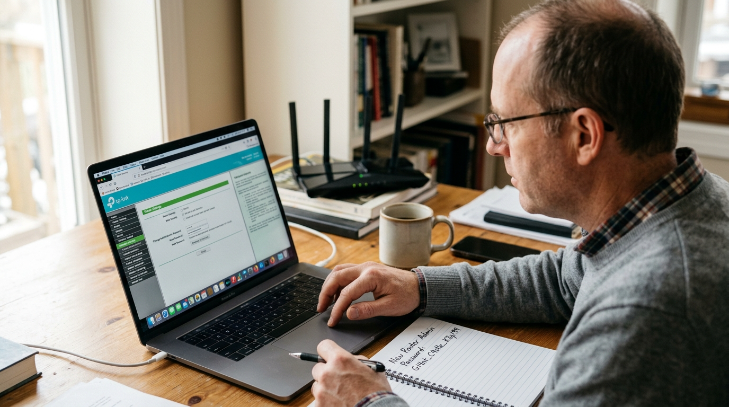
To fix this, open your web browser, type your router’s IP address into the search bar, and access the settings panel. Change the admin password to something entirely custom that none of the kids can guess. Write this password down in a physical notebook and hide it in your bedroom rather than saving it on your computer. Your router admin panel is the keys to your digital castle, so do not leave the default lock on the gate.
Phase 2: Segregate Devices with a Dedicated Guest Network
Every modern router allows you to broadcast a secondary network, usually called a guest network. When your stepkids bring their friends over, or when they download random Minecraft mods from sketchy forums, they risk infecting your primary network. Keeping their devices separate protects your work computer, smart home devices, and banking logins from accidental malware infections.
Enable this secondary network in your router settings and assign all children’s devices to it. Name this network something completely boring like “Printers Only” rather than “Kids Network” to keep their friends from begging for the password. This simple guest network setup isolates any potential digital issues to their devices, preventing a single compromised download from spreading to your entire household.
Phase 3: Implement Free Parental Controls via OpenDNS
Many security companies charge expensive monthly subscription fees for parental control devices and apps. You do not need them because you can get premium-grade web filtering for free by changing your router DNS settings to point to OpenDNS FamilyShield. This free service automatically blocks adult content, phishing sites, and academic cheating portals before they even reach your home.
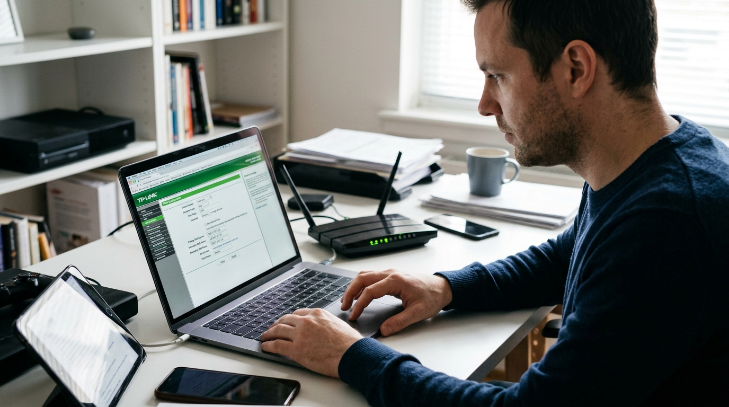
To set this up, log into your router settings and locate the WAN or internet configuration page. Replace your default DNS addresses with the free OpenDNS servers, which are 208.67.222.123 and 208.67.220.123. Using OpenDNS FamilyShield means every single device that connects to your wifi, including gaming consoles and friends’ phones, is automatically filtered without installing a single app.
Phase 4: Create a Uniform Device Update Routine
Outdated software is the easiest way for hackers to break into your home devices. Kids are notorious for ignoring those annoying software update popups on their tablets and phones for months on end. An old tablet running an outdated operating system leaves your network vulnerable to automated security exploits.
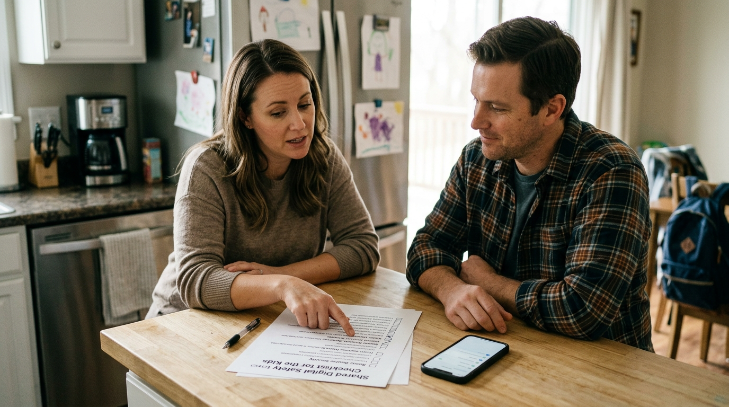
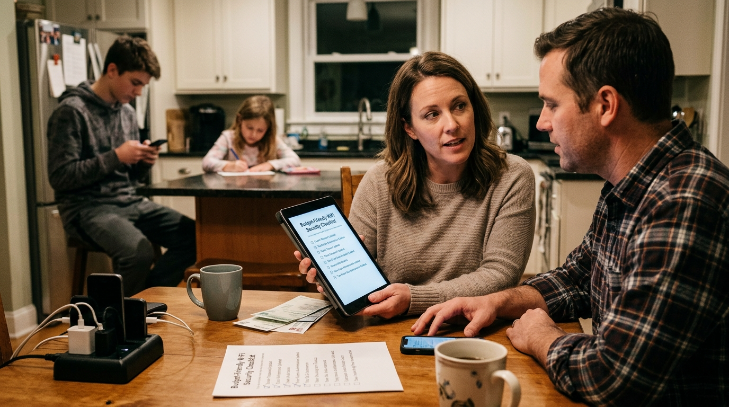
Establish a monthly screen cleaning day where everyone brings their devices to the kitchen table. While you help them update their systems, order some pizza or play some music to keep the mood light. Fixing these unpatched security flaws takes only a few minutes per device, but it closes the primary backdoor that malware uses to spread through a shared home network.
Phase 5: Build a Co-Parenting Proof Password System
When kids split their time between two households, they often reuse the same simple passwords for school, gaming, and social media. If their account gets compromised while they are using public wifi at a fast food joint near their other parent’s house, that compromise travels back to your home. Moving your family to a password system protects everyone.
Help your kids set up a free account with Bitwarden to securely store their credentials. Teach them how to create strong master passwords by combining three random, memorable words. This habit protects their gaming accounts from being stolen and ensures that a security breach at their other home does not compromise your network security.
Phase 6: Establish Clear Device Free Zones
The best digital security is often physical. Late-night browsing in bedrooms is when kids are most likely to click on sketchy links, visit unapproved websites, or download malware. Creating physical boundaries around where devices can be used dramatically reduces these risky digital behaviors.
Designate bedrooms and the dinner table as device-free areas, especially after bedtime. Set up a central charging station in the kitchen or living room where all phones and tablets must spend the night. This physical boundary keeps kids from sneaking online when they should be sleeping, making it much easier to monitor network safety.
Phase 7: Address the Dual-Household Security Gap
A major challenge of blended family life is the discrepancy in rules between different houses. If your rules are strict but the other parent’s house is a digital free-for-all, your kids will resent your boundaries. Keeping the lines of communication open with your partner’s ex can help bridge this gap.
Reach out to the other household to share your basic security setup, framing it around protecting the kids from identity theft and online predators rather than dictating how they parent. Achieving even basic consistency across both homes regarding updates and password safety makes life easier for the kids. It also ensures that your budget friendly wifi security checklist for blended families actually works, regardless of which house they sleep at on any given night.
Frequently Asked Questions
Why do blended families face unique wifi security risks?
Blended families experience a massive influx of devices from multiple environments. Kids constantly travel between different homes, bringing external security bugs, outdated software, and loose digital habits back to your network. This continuous movement makes your home network far more vulnerable to accidental security breaches.
Is a budget friendly wifi security checklist for blended families enough to stop online threats?
Yes, because most cyber threats rely on easy targets like default admin passwords and unpatched operating systems. By systematically locking down these entry points, you eliminate the vast majority of digital risks without spending any money on premium security software or hardware.
How do I set up router filtering without paying for a subscription?
Most modern routers have free, built-in scheduling and content filters accessible in the admin panel. Additionally, configuring your router to use a free DNS service like OpenDNS FamilyShield automatically blocks malicious sites across all connected devices in your home for free.
What is the best way to handle different security rules between two households?
Focus on open, non-judgmental communication with the co-parent. Frame the discussion around protecting the children’s personal data and online safety rather than comparing rules. Providing your kids with easy tools like password managers also ensures they maintain good habits everywhere.
Can my kids bypass guest network restrictions?
Only if they have the admin password to your main router settings. Keep your primary network password and your router’s admin credentials completely secret. As long as those two passwords are secure, your kids cannot modify network divisions or bypass parental controls.
Conclusion
Securing a newly combined household does not have to cost a fortune or require a degree in computer science. Taking these simple steps protects your family from digital threats while helping your kids develop healthy online habits. What is the first change you plan to make on your home router tonight?