I spent three years convinced that a desk wasn’t complete without two massive screens staring back at me. I looked like a stock trader trying to catch split-second market movements, but in reality, I was just ignoring my primary work to watch email threads and Slack channels update in real-time. My neck constantly ached from panning back and forth, and my focus was perpetually fragmented.
Making the conscious choice to downgrade to a single screen felt incredibly risky, yet it quickly became the best layout decision I ever made. Stripping away that second monitor forced me to stop multitasking and actually concentrate on the task directly in front of me. Your brain isn’t built to process two active digital environments at once, so a single display naturally acts as a visual funnel, directing all your energy to one place. I learned to rely heavily on virtual desktops instead of physical ones, using simple trackpad swipes to cycle between apps, which kept my physical environment beautifully quiet.
The Centered Powerhouse: Designing Top Rated Workspace Layouts for Single Monitor Users
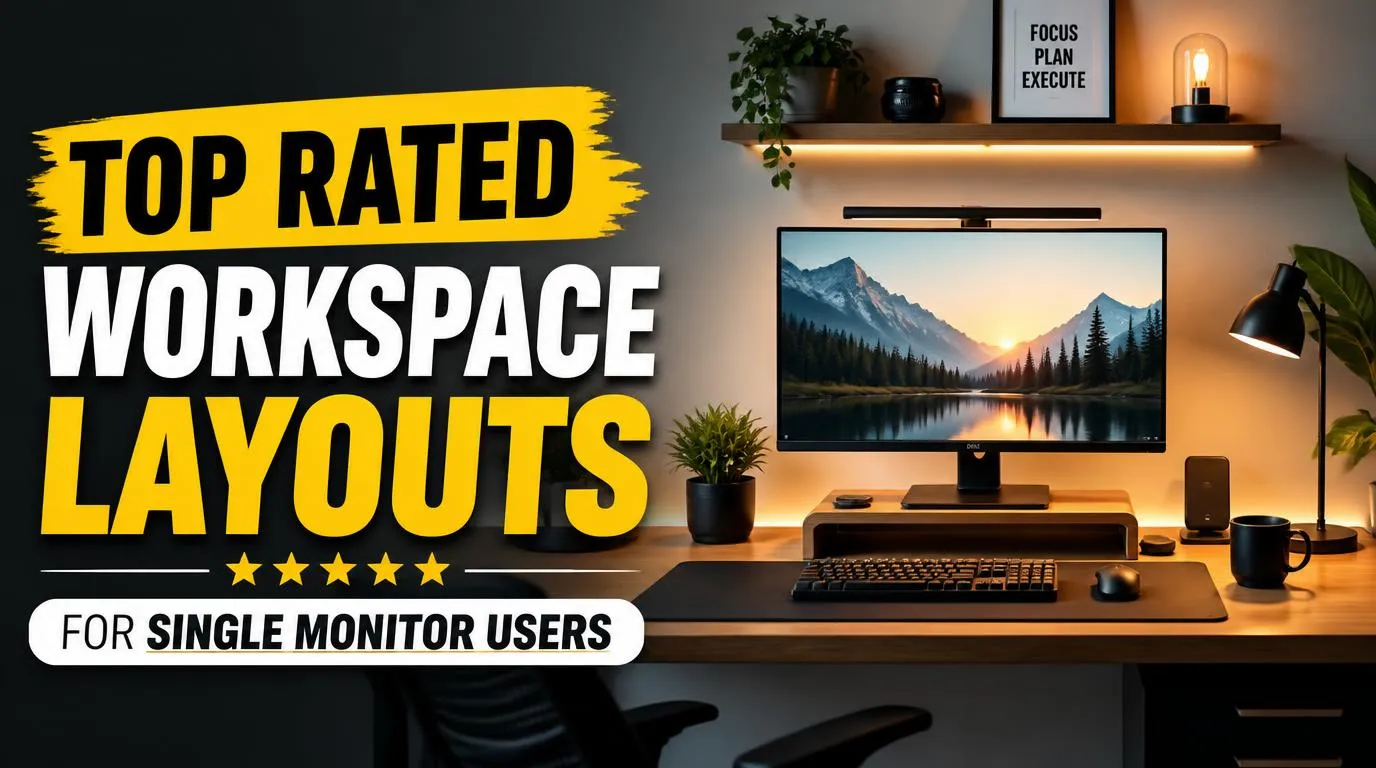
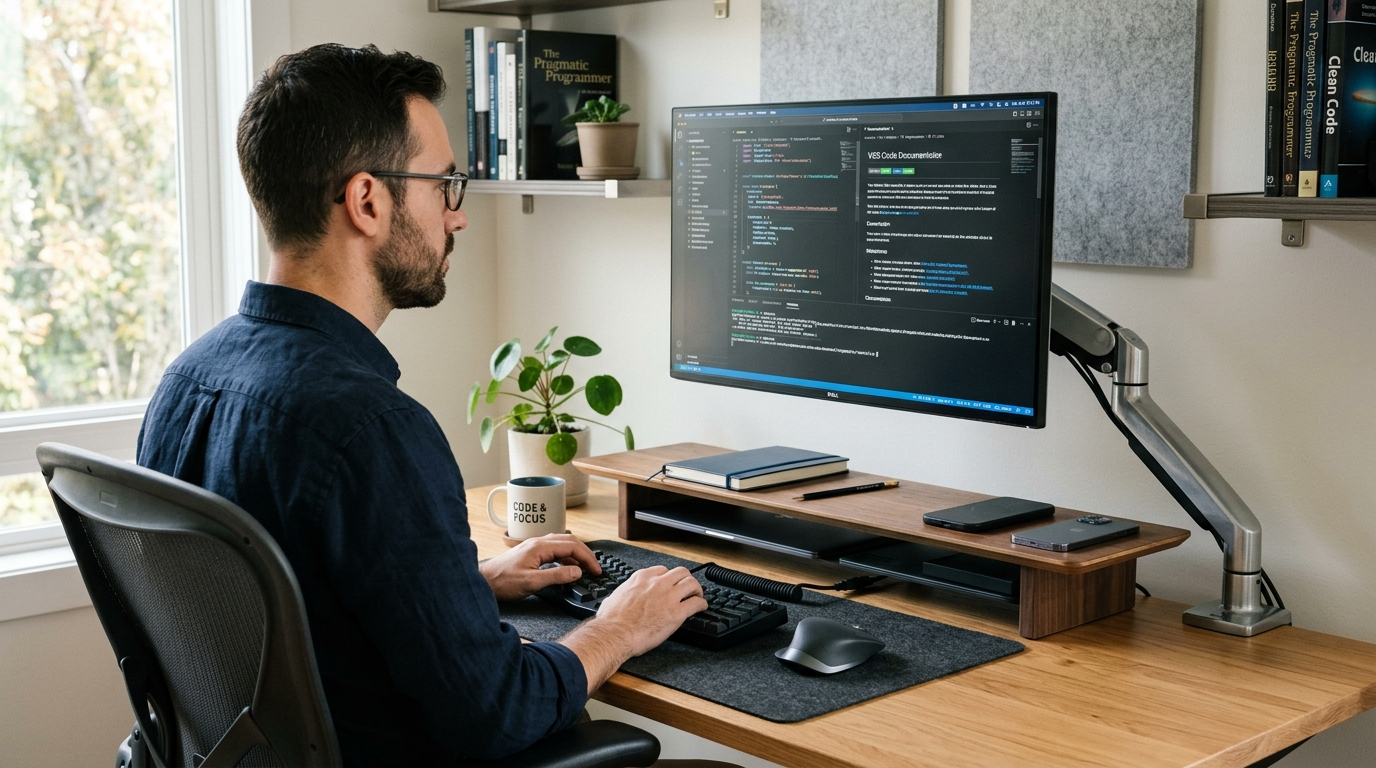
If your daily work involves deep focus, coding, or heavy writing, the centered powerhouse layout is your best starting point. I started researching the most popular, top rated workspace layouts for single monitor users to see how professionals design their spaces. This configuration places your monitor directly in front of you, with the top third of the screen resting at eye level to prevent slouching.
To make this setup incredibly functional, use a solid desk shelf to raise your display rather than relying on a stack of books. A wooden desk shelf, like those made by Grovemade or Balolo, creates a clean, architectural look while carving out precious storage space underneath for your notebook, charging cables, and daily accessories. Pair this with a split mechanical keyboard and a high-quality mouse placed close to your body to prevent your shoulders from rolling forward. Floating the screen with a sturdy monitor arm, like an Ergotron LX, frees up your entire desktop, giving you a massive sense of openness that keeps physical clutter to an absolute minimum. It creates a symmetrical visual field that anchors your focus, allowing you to work for hours without feeling like your workspace is closing in on you.
The Off-Center Creative Setup for Analog Thinkers
Not everyone spends their entire day typing away on a keyboard. If you are a designer, planner, or someone who frequently takes notes by hand, putting your keyboard directly in the center of your desk can make your physical workspace feel cramped. That is where the off-center layout shines, offering a beautiful balance between digital and physical mediums.
By shifting your monitor about ten degrees to the left or right and angling it slightly inward, you open up a wide, uninterrupted desk space directly in front of your chair. This open area is perfect for a large, high-quality desk pad where you can lay down a physical sketchbook, an iPad Pro, or a paper planner without having to awkwardly push your keyboard out of the way. You can easily pivot your body toward your screen when you need to type, then swing back to your desk surface to brainstorm on paper. It creates a physical boundary between your digital consumption and your tactile, analog creation, making it much easier to step away from screens and let your mind wander during creative blocks.
The Minimalist Laptop Docking Hub
Many of us run our entire work lives off a laptop, which often leads to the awkward setup of a small laptop screen sitting right next to a giant external display. This mismatched dual setup creates terrible viewing angles and constant neck shifting. When testing different top rated workspace layouts for single monitor users, I found that hiding the computer itself does wonders for mental clarity.
Instead of keeping your laptop open, close the lid and drop it into a vertical aluminum stand, like the Twelve South BookArc, placed behind or to the side of your main monitor. Connect everything using a single, high-quality USB-C cable that handles power, video, and data all at once. This leaves you with just one pristine, high-resolution screen as your visual focal point, completely eliminating the visual noise of a secondary, smaller screen. Investing in a premium wireless mouse and keyboard, such as the Logitech MX Master 3S and Keychron Q1, ensures you still have top-tier inputs without cluttering your clean, minimalist workspace with unnecessary cables. It feels incredibly satisfying to dock your laptop at the start of the day and completely shut out the distraction of notifications flashing on a tiny side screen.
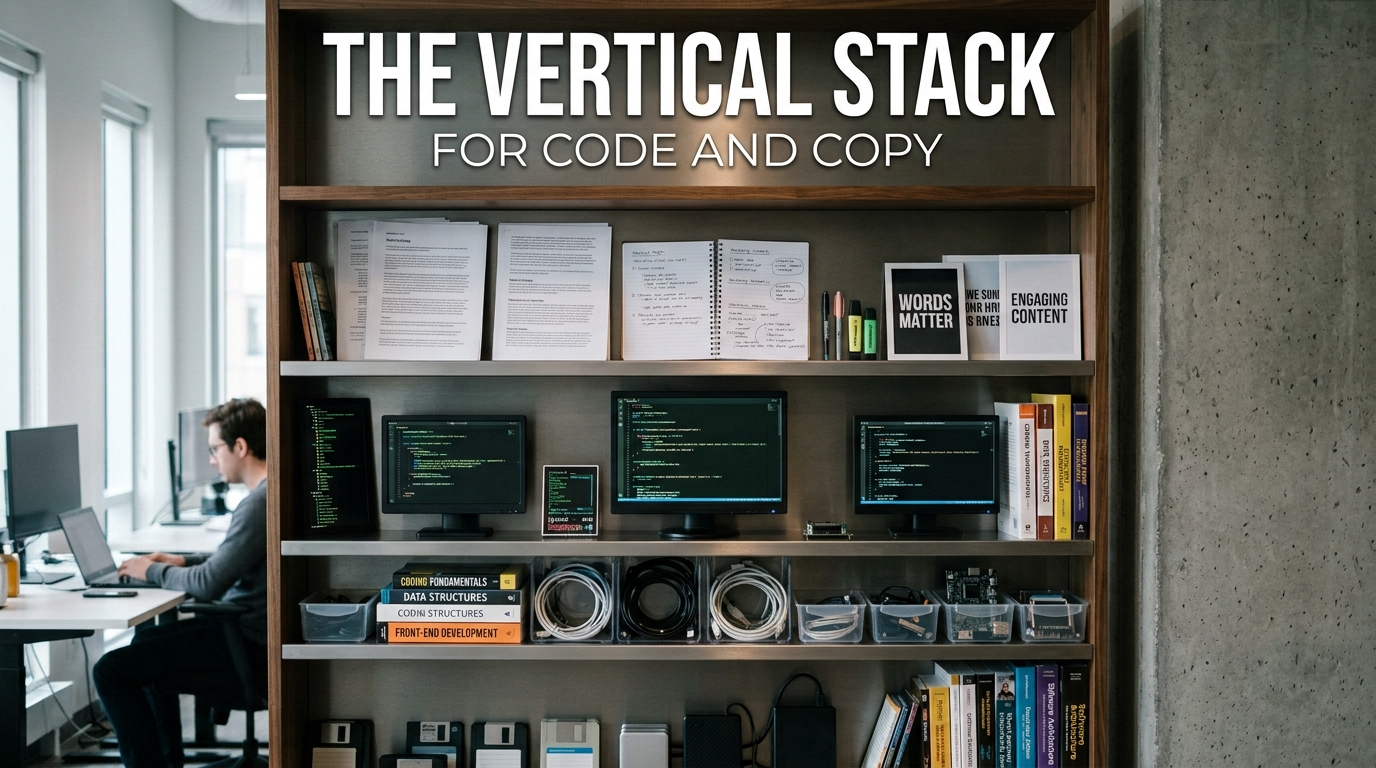
The Vertical Stack for Code and Copy
For writers, editors, and programmers, a standard horizontal widescreen monitor isn’t always the most efficient option. If you spend your day reading endless lines of text, scrolling through long articles, or debugging code, you should try rotating your single monitor ninety degrees into portrait orientation. This vertical setup displays an entire page of text or a massive block of code without requiring you to scroll every three seconds.
It feels incredibly strange for the first hour, but once you get used to the vertical flow, reading long-form documents becomes remarkably comfortable. You will need a highly adjustable articulated monitor arm to make this work, as standard desk stands rarely support vertical rotation. Position the vertical monitor slightly lower than you would a horizontal one, ensuring you do not have to tilt your head backward to read the top lines. This layout is a highly efficient way to work if your daily tasks are heavily document-based. It is also a fantastic way to review legal documents, read vertical PDFs, or monitor long feeds of real-time data without feeling overwhelmed by horizontal white space.
Essential Accessories that Complete the Layout
Once you settle on a physical arrangement, adding a few intentional accessories can make your single-screen experience feel incredibly premium. A high-quality wool felt desk mat is a fantastic addition, as it defines your active work area, softens the look of your desk, and provides a comfortable resting place for your hands. It also keeps your keyboard from sliding around while you type, adding a tactile element to your workspace.
Another massive quality-of-life improvement is a monitor light bar that clips directly onto the top of your screen. Unlike traditional desk lamps that take up valuable desk space and throw light at awkward angles, a light bar casts an even glow straight down onto your keyboard and documents without causing any screen glare. This dramatically reduces eye strain during late-night sessions and keeps your desk surface clean, open, and completely uncluttered. Pair these additions with an under-desk cable management tray to hide all your power bricks, and your single screen setup will feel like a custom high-end workstation.
Mastering Digital Window Management on One Screen
Making the physical shift to a single monitor is only half the battle; you also need to optimize your digital workspace to make up for the lost screen real estate. Relying on default window management can quickly lead to a frustrating mess of overlapping tabs and buried windows. To keep your workflow fluid, you must master keyboard shortcuts and clean desktop organization.
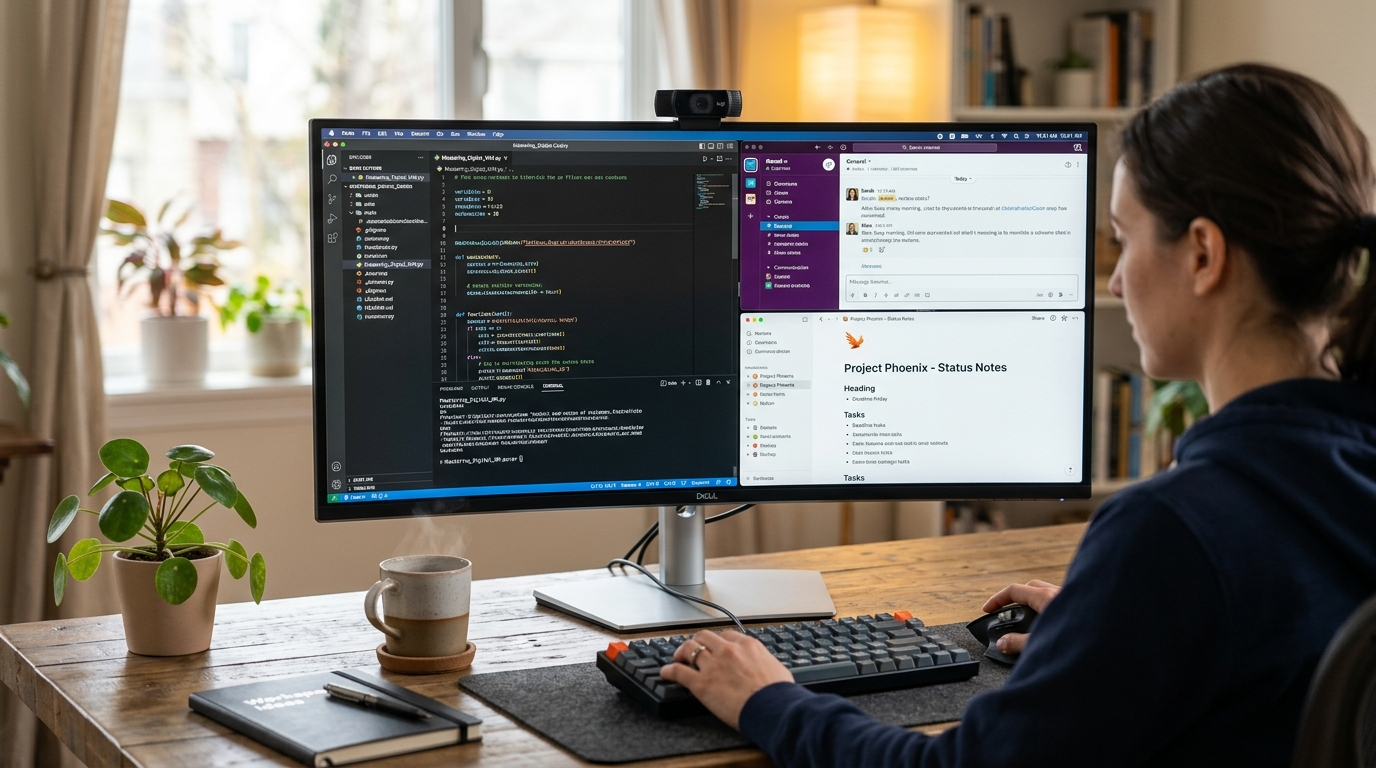
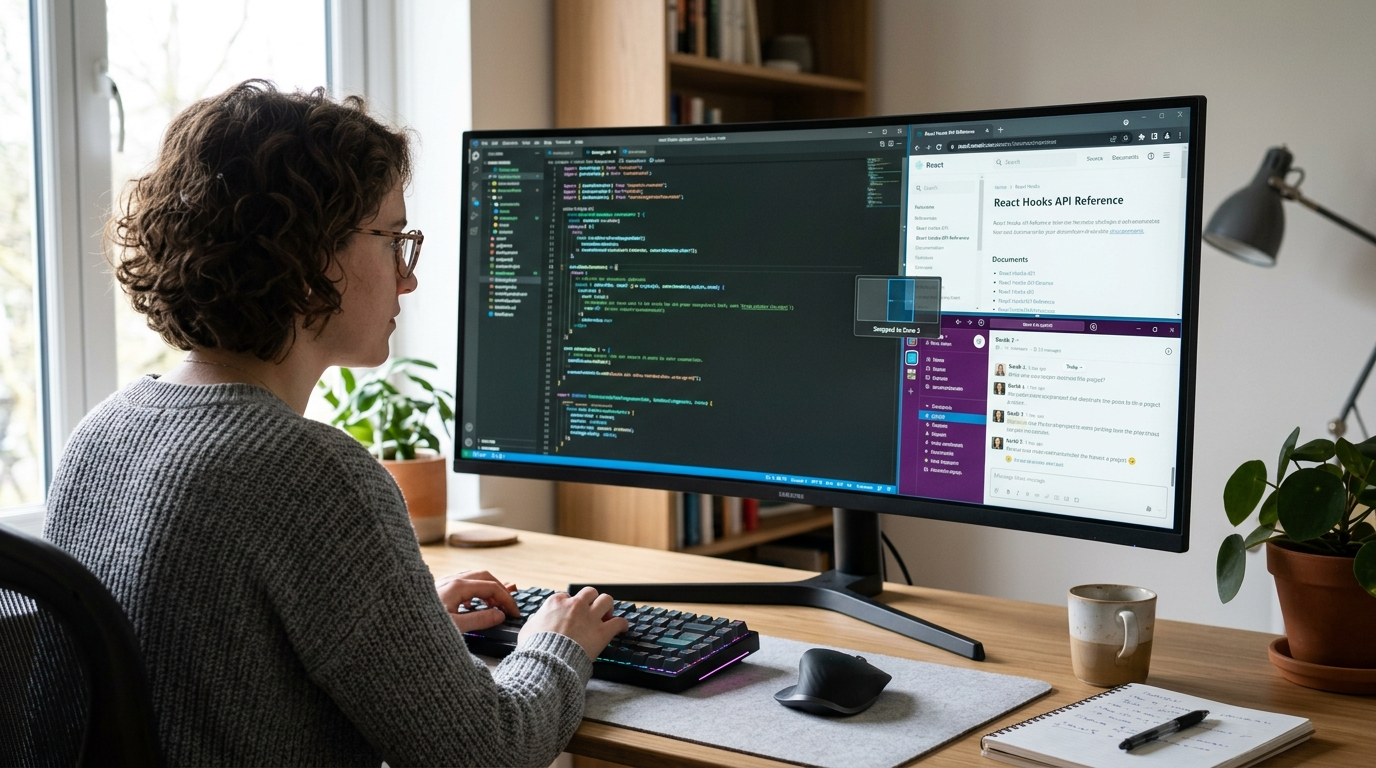
I highly recommend installing a window snapping tool like Rectangle for Mac or using Powertoys FancyZones on Windows. These lightweight programs allow you to snap windows into perfect halves, thirds, or quadrants instantly with simple keyboard combinations. You can keep your primary document taking up two-thirds of the screen while leaving a narrow one-third column open for your reference notes or chat app. This digital layout mimics the utility of a dual-screen setup without any of the physical neck strain, proving that a single, well-organized monitor is more than enough to handle intense multitasking.
Mastering Digital Window Management on One Screen
Making the physical shift to a single monitor is only half the battle; you also need to optimize your digital workspace to make up for the lost screen real estate. Relying on default window management can quickly lead to a frustrating mess of overlapping tabs and buried windows. To keep your workflow fluid, you must master keyboard shortcuts and clean desktop organization.
I highly recommend installing a window snapping tool like Rectangle for Mac or using Powertoys FancyZones on Windows. These lightweight programs allow you to snap windows into perfect halves, thirds, or quadrants instantly with simple keyboard combinations. You can keep your primary document taking up two-thirds of the screen while leaving a narrow one-third column open for your reference notes or chat app. This digital layout mimics the utility of a dual-screen setup without any of the physical neck strain, proving that a single, well-organized monitor is more than enough to handle intense multitasking.
Frequently Asked Questions
Are desk setups for one screen actually better for focus?
Absolutely. Having only one screen limits your visual distractions, preventing your eyes from constantly wandering to email or messaging apps. It encourages deep work by forcing you to commit to one window at a time, which naturally reduces mental fatigue throughout the workday.
How high should my monitor be placed to avoid neck strain?
Your eyes should naturally align with the top third of your screen when you sit up straight. If your monitor sits too low, you will constantly tilt your head downward, which puts immense pressure on your neck and spine over time.
Which of these top rated workspace layouts for single monitor users works best for small desks?
The minimalist laptop docking hub is perfect for smaller spaces. By closing your laptop and storing it vertically, you save massive amounts of desk surface. Combining this with a monitor arm keeps your entire desktop open for your keyboard and mouse.
Do I need a curved monitor if I only use one screen?
Curved screens are excellent if you use an ultrawide monitor because they bring the outer edges closer to your natural peripheral vision. For standard flat screens under twenty-seven inches, a curve is not necessary, as you can easily see the entire display without turning your head.
How do I manage multiple windows efficiently on a single display?
Use built-in window management tools like Magnet on Mac or FancyZones on Windows. These tools let you snap windows into clean halves or thirds using simple keyboard shortcuts, giving you quick, organized access to your reference materials without needing a physical second monitor.
Conclusion
Designing a clean, intentional desk setup around a single screen is one of the easiest ways to reclaim your focus and protect your posture. By choosing a layout that matches your daily habits, you can build a highly productive space that actually makes working a pleasure. Which of these layouts are you planning to try out on your own desk?